
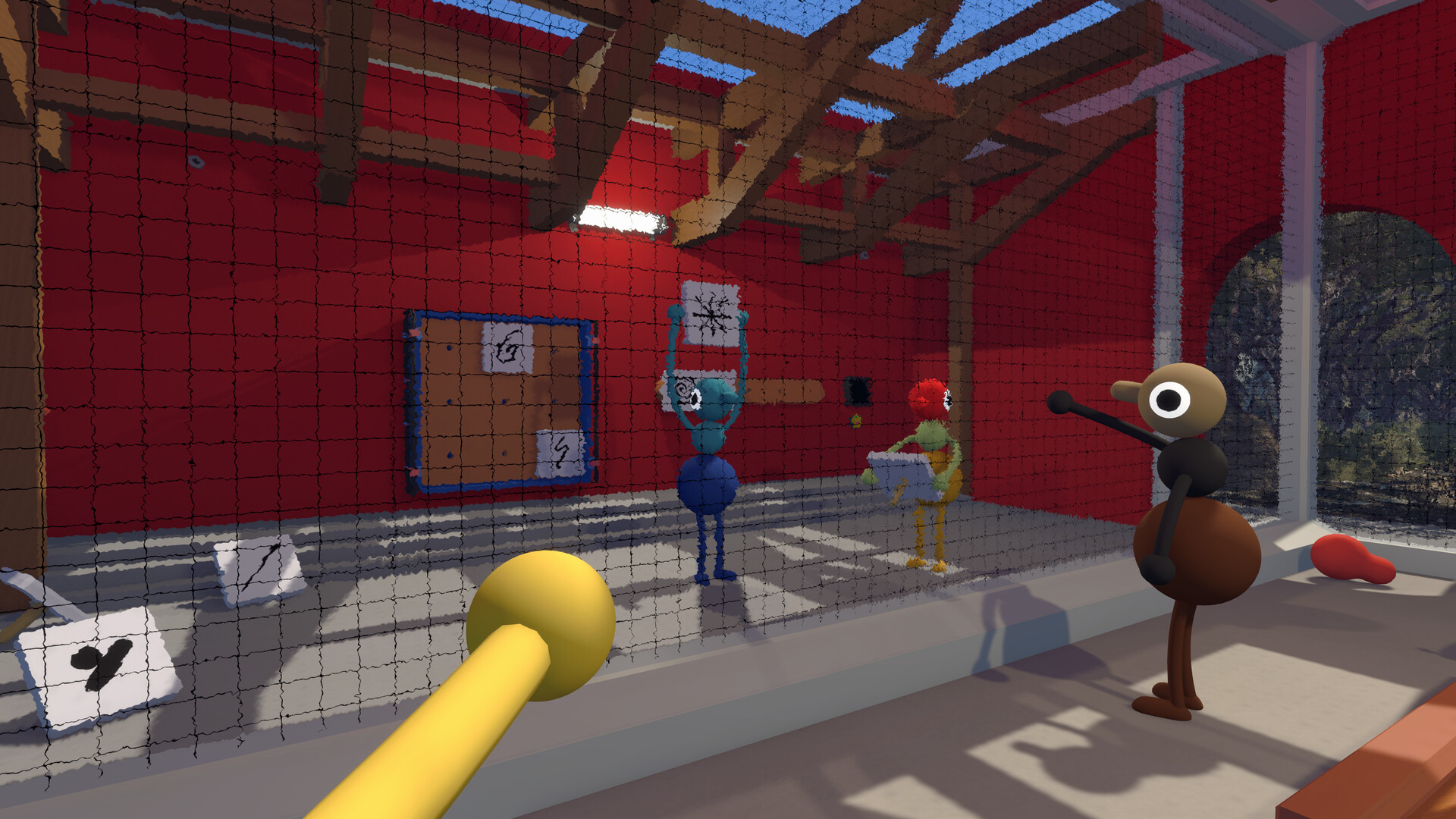
Use the host's Join Code across platforms; if joining fails, confirm the host is loaded in, clocks are accurate, versions match, and both games are restarted.
Big Walk supports crossplay. The host can share the short Join Code shown in the host menu before play or under Session Details after entering the world. Players on Windows, Mac, PS5, and Switch 2 can use that code even when their platform friends lists do not connect them.
If the session will be streamed or the code could be seen by others, set a password in Session Details. The code alone permits joining, and a session can also appear to friends of people already inside.
When a join fails, use this order:
- Confirm the host has started the session and their character is fully loaded into the world.
- Check any connection warning displayed for the host.
- Confirm every device has a working internet connection and an accurate system clock.
- Compare versions. The first two numbers must match; a different third number is allowed.
- Close Big Walk completely on host and client, reopen it, then try the code again.
- Reboot the computer or console if a full app restart does not help.
On the Mac App Store version, friend games do not appear through Game Center, so use a Join Code. Remember that the host owns the automatic save: fixing the connection does not transfer the journey to another player.
Sources & evidenceOpen the references used for this page
QUICK ANSWERS
Questions players ask next
Where is the Big Walk Join Code?
It appears in the host menu before starting and under Session Details after the session has begun.
Do all players need the identical version number?
The first two version-number parts must match; the third may differ according to the official FAQ.
HELP SHAPE THE NEXT UPDATE
Missing an answer—or found something outdated?
Send the exact game problem, platform, and version. Corrections are reviewed before expansion requests.